How can we help you today?
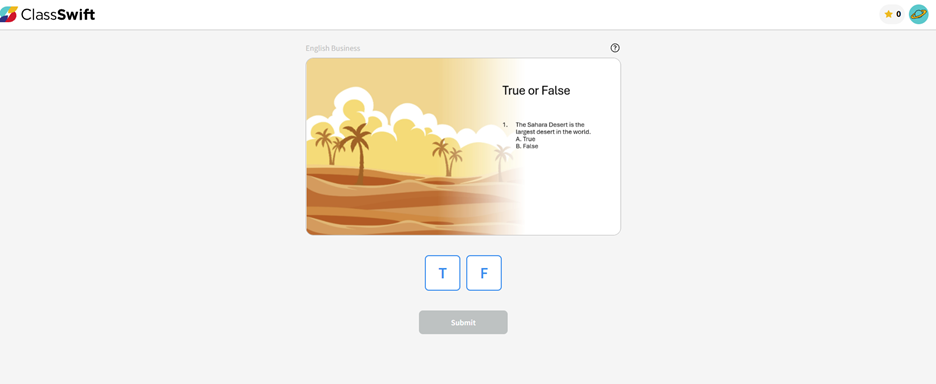
Once your teacher starts a lesson, you may be asked to answer different types of questions, including True or False, Multiple Choice, Audio, Poll, Short Answer, and Push and Respond. Below is an example of what a True or False question looks like on your end. Other question types follow a similar sequence.
You’ll receive a question from your teacher on your screen and be asked to answer it.
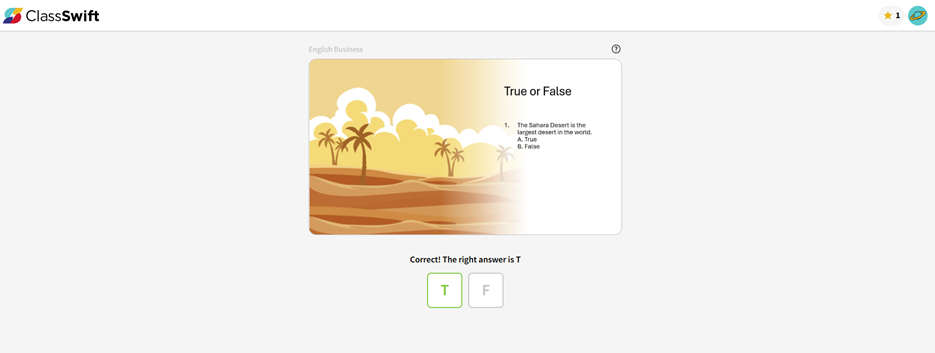
Once your teacher ends the quiz, you’ll see whether your answer was right or wrong.
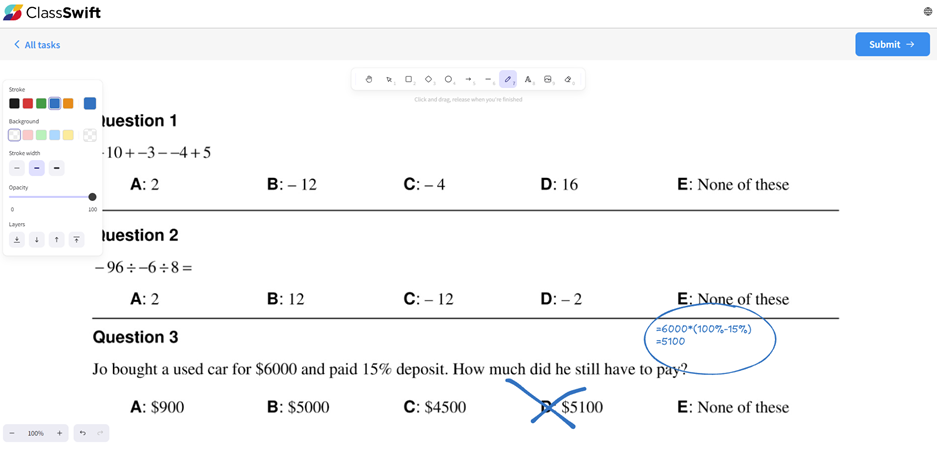
For Push and Respond questions, you can answer by drawing directly on the canvas.
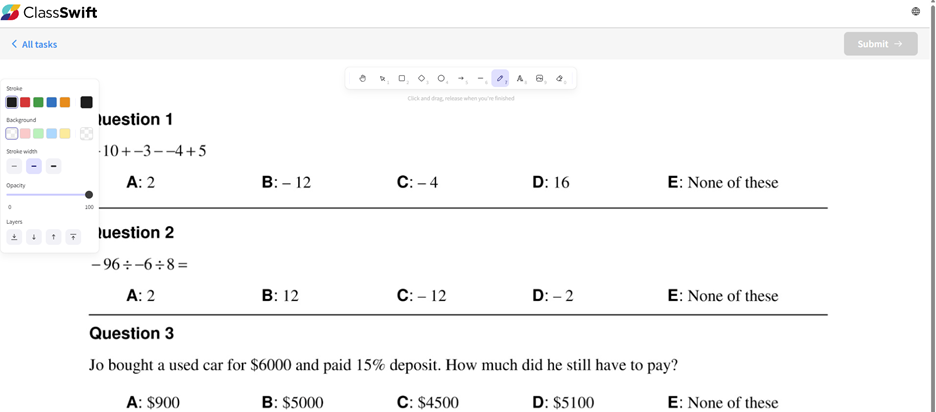
In this math example, you can type out how you solved the equation, mark your answer with an ‘X,’ and submit it.
ClassSwift also includes engagement tools like Timer, Random Draw, Spinner, and Buzzer. This section shows what the Spinner looks like on your end.
On your teacher’s screen, you’ll see a wheel ready to spin.
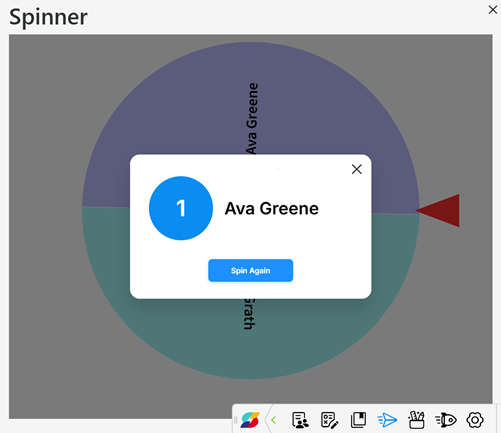
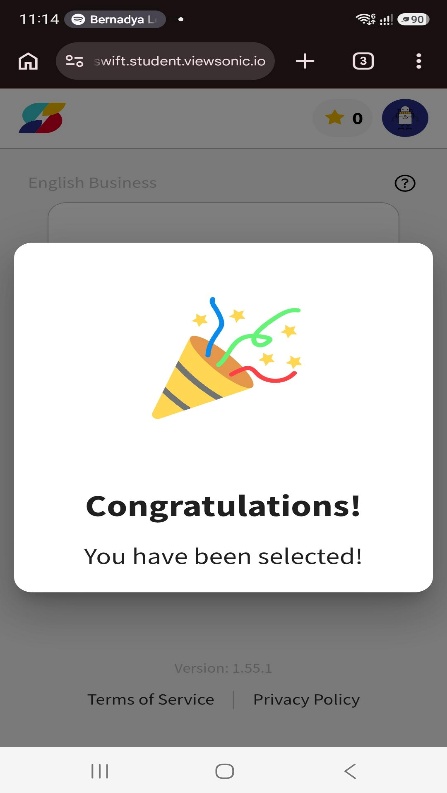
Once you’re selected, this is what you’ll see.